
Predecessor Server Status: Outages and Update Checks
Check Predecessor server status, find official announcements, and learn what to look for when login trouble or matchmaking issues interrupt your next game.
Jump to
How to Find Out Whether Predecessor Is Down
Stuck outside your next match? Check Predecessor server status before spending your session troubleshooting. Start with Omeda Studios’ announcements to look for maintenance notices or service updates that explain the interruption.
Open the Predecessor official website and head to News, where you’ll find Announcements and Patch Notes. Look for a notice describing your issue, its affected services, and any maintenance window. Match the notice’s date to the interruption you’re experiencing.
You can also reach the game’s community channels through the website’s Join the Community area. Keep your search focused on service announcements: balance discussions and gameplay complaints won’t tell you whether login or matchmaking is unavailable.
An operational indicator can coexist with individual login or matchmaking complaints. Report-based tracking with an outage threshold of 20 or more reports per hour and a degraded-service threshold of 6 or more leaves smaller numbers of complaints below both thresholds. Read those labels alongside the individual symptoms: an operational rating and a player struggling to connect are not mutually exclusive.
The website’s News menu also includes Developer Diaries. That separates development discussions from Announcements and Patch Notes, giving you distinct places to look for service messages, update details, and longer explanations of changes.
Check Update Dates Before Assuming Maintenance
Predecessor receives major updates, balance patches, and hotfixes. Read the announcement’s title and date carefully so you can distinguish an upcoming preview from a released update.
 Image: Steam / Omeda Studios
Recent dated posts include:
- October 28, 2026: “Update 1.18 Frostbite - First Look Dev Stream,” a preview of the update.
- October 13, 2026: “Balance Patch v1.17.2 - Shadow's Eve is Here!”
- September 24, 2026: “Hotfix 1.17.1 - Patch Notes.”
The September 22, 2026 announcement for Update 1.17: Bloodtide explicitly marked that update as live. The website’s newer news area features V1.18: Frostbite Patch Notes, alongside The Road to Paragon: Ranked in 1.18 and Beyond. Those titles cover different subjects: the Frostbite patch and the direction of ranked play.
Earlier updates also show why the subject of an announcement matters when you’re investigating a problem:
- For a Frostbite interruption, open V1.18: Frostbite Patch Notes rather than stopping at the earlier October 28, 2026 first-look stream announcement.
- For v1.17.2, distinguish the October 13, 2026 balance patch from the older September 24, 2026 hotfix for 1.17.1.
- For Update 1.17: Bloodtide, use September 22, 2026 to place its launch announcement before the later hotfix and balance patch.
- For ranked questions, look for The Road to Paragon: Ranked in 1.18 and Beyond in Developer Diaries.
Choose the announcement whose subject matches the feature giving you trouble. Keep that distinction in mind when browsing update history: a map change, a social-screen improvement, and a matchmaking announcement concern different parts of your session.
For maintenance timing, look for a service notice that gives a start time or restoration update. A patch title alone doesn’t tell you when you can get back into a match.
Give Support the Details That Matter
If you need help with a persistent connection problem, use the Predecessor support page. Describe exactly where you get stuck instead of reporting only that the game is down.
 Image: Steam / Omeda Studios
Include:
- Platform: Steam, Epic Games Store, PlayStation, or Xbox.
- Region: Where you’re connecting from.
- Failure point: Signing in, entering matchmaking, or staying connected during a match.
- Error message: Copy the wording exactly.
- Timing: Include when the problem began and your time zone.
Predecessor supports cross-platform multiplayer on PC and consoles, so naming your platform gives your report useful context. Keep login failures, matchmaking trouble, and visual performance problems separate in your description so support can identify the interruption you’re actually experiencing.
On PC, the game supports Windows, and both Steam and Epic Games Store appear among its available platforms. PlayStation and Xbox players also share cross-play with PC. Controller use alone therefore doesn’t identify which platform someone is playing on.
The game also includes Discord-powered voice communications and full controller support. Describe a voice communication problem separately from a failure to enter a match, and identify your platform even when discussing controller input. Those details distinguish the feature giving you trouble from the wider multiplayer connection.
Continue exploring
Popular pages
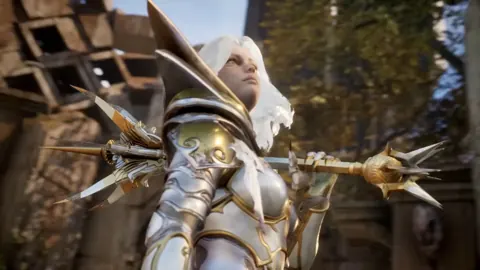
Predecessor Tier List: Ranked Heroes and Win Rates
Use this Predecessor tier list to compare win rates, pick rates, and bans, then weigh Khaimera, Scarlett, Gideon, Akeron, and Feng Mao for ranked play.
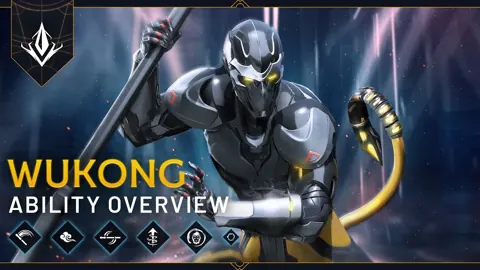
Predecessor Valmont Build: Skills, Mana, and Augments
Shape your Predecessor Valmont build around magical power, Lilith, and smart mana use. Learn ability priorities, augment tradeoffs, and teamfight tactics.
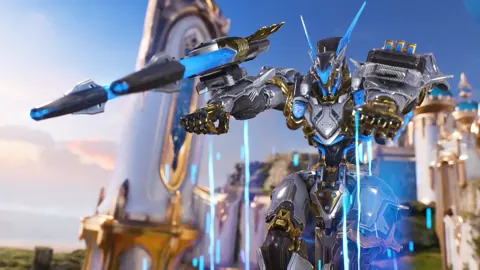
Predecessor Brawl Guide: Scoring, Buffs, and Win Tips
Learn Predecessor brawl scoring, defend your portal, escort Fangtooth, and fight for Orb Prime with practical tips for the mode's fast-paced 5v5 battles.
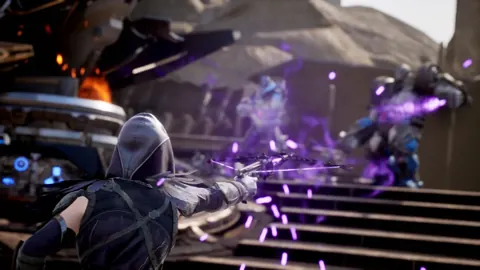
Predecessor Characters: Full Roster and Starter Picks
Explore Predecessor characters, browse the hero roster, and compare beginner picks like Gideon, Greystone, and Zarus to find a playstyle that fits you.
Join the community
Official channels for news, updates and player help: